top of page

Dark theme
Switch between light and dark modes to adapt the interface to your environment and reduce visual strain.

Colors
Apply color to an individual task or to an entire branch, choose from eight available colors, and optionally propagate the styling to all child tasks.

Headings
Use six heading levels to organize phases, workstreams, and tasks, creating a clear and structured outline within the tree.

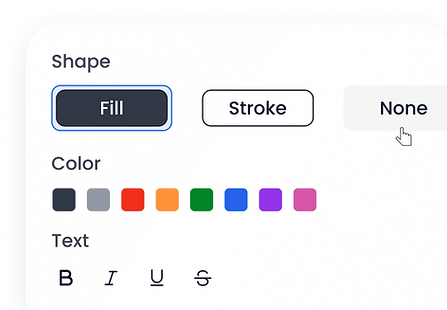
Shape & Text styling
Choose between Plain, Fill, or Stroke styles, and apply text formatting options like bold, underline, or strike-through.
Flags, Stars & Symbols
Add visual markers like flags or stars to highlight items.
Use simple symbols to add meaning and clearly indicate priority or status.

Follow previous task style
New sections automatically inherit the existing styling, so formatting stays consistent without needing to reapply it manually.

Explore more features
Build your first project
Start with a simple outline, then add detail only where it’s needed.
bottom of page